A collection of the most commonly used CSS rules with explanations of how they work
Assuming you're using a good code editor, you will get code hints as you write your CSS. Take note of the options that appear – these act as a good reference and a means to learn what CSS rules are available to you.
Using the following HTML as a working example will help us to visualise the many CSS rules we'll demonstrate in this article. Some basic styling has been applied to keep the output neat, but don't worry about these, concentrate on each example's specific rule to understand its effect. You'll encounter separate in-depth demos for some of the more complex rules as you progress.
										<div>
										<h1>The universe</h1>
										<p>The universe is commonly defined as the totality of everything that exists or is known to exist. This includes all <a href="">matter</a> and energy; <a href="">planets</a>, stars, and <a href="">galaxies</a> and the contents of intergalactic space.</p>
										<p class="discoverMore">You can discover more about the universe on <a href="">Wikipedia</a>.</p>
										</div>
Our example HTML.
Note: You may notice that the <h1> present in the following examples is not weighted as bold. Don't worry, the default is that all headers are weighted bold, but the stylesheets for this website are overriding them for purposes further up the chain!
Text
Here are some CSS rules to control the appearance of text.
Colour
h1 {
color:#ff0000;
}
The universe
The universe is commonly defined as the totality of everything that exists or is known to exist. This includes all matter and energy; planets, stars, and galaxies and the contents of intergalactic space.
You can discover more about the universe on Wikipedia.
Applying colour. No one said it would be pretty.
In the CSS box above the rule color is applying the value #ff0000 to the element outside the curly brackets – an h1 in this case. The output box shows the title, 'The Universe' (which is marked up as an <h1>) in bright red.
See the previous article about applying colour using different methods.
Font family
Set your website's typeface with this rule: font-family. There are quite a few basic families to choose from, but all should be assigned to serif, sans-serif or monospace. Here are some examples:
The order is based on your preference. Whichever is first in the list will be the one used by the visitor's browser. However, if that typeface isn't available the next typeface in the list is used. If each subsequent typeface isn't available, the last value, sans-serif will be applied, effectively meaning the user's browser will just use whatever sans-serif typeface is available to it. These days though, the majority of internet-enabled devices have access to a plethora of good typefaces, especially Helvetica (in one form or another).
The universe is commonly defined as the totality of everything that exists or is known to exist. This includes all matter and energy; planets, stars, and galaxies and the contents of intergalactic space.
You can discover more about the universe on Wikipedia.
Serif, sans-serif – you decide.
If you're using a web font and have referenced the file elsewhere in your CSS, you assign it as shown below (and in another article), using quotation marks to make sure the element assigned with that CSS value will render in your chosen font:
font-family:"MuseoSlab", Helvetica, sans-serif;
Setting a web font.
Note: It always pays to have other typefaces in your font-family list in case something prevents your chosen web font from rendering.
Font style
Make text appear upright, or italicised. By default (excluding headers) all text is set to normal, so you'd only need use it if an element that needs to be normal is inheriting italic styling from a parent element.
font-style:normal; or italic;
font-style options.
p {
font-style:italic;
}
The universe
The universe is commonly defined as the totality of everything that exists or is known to exist. This includes all matter and energy; planets, stars, and galaxies and the contents of intergalactic space.
You can discover more about the universe on Wikipedia.
Make it look like it's going somewhere fast.
Note: See how the <a> tags are italicised too? This is because they are inline elements, so will always go with the flow established by block level elements and their assigned styles – unless you choose to override them.
Font size
Font size can be set in pixels, or proportionally using ems. In this modern digital age it is recommended you use ems to set your type.
font-size:1.2em; or 16px;
font-size options are all about the measurements.
h1 {
font-size:3em;
}
The universe
The universe is commonly defined as the totality of everything that exists or is known to exist. This includes all matter and energy; planets, stars, and galaxies and the contents of intergalactic space.
You can discover more about the universe on Wikipedia.
Make the text bigger.
Font weight
Like font-style, font-weight is set to normal by default for all text, excluding headers.
Your first and only real option is bold. However, you can also you a numbering system to vary the amount of weight given to text. This is coming back into fashion with the use of web fonts, as many typefaces are made up of different weights and you may require more granular control in these instances. Consult your web font service for more detail.
font-weight:normal; or bold;
font-weight options.
h1 {
font-weight:bold;
}
The universe
The universe is commonly defined as the totality of everything that exists or is known to exist. This includes all matter and energy; planets, stars, and galaxies and the contents of intergalactic space.
You can discover more about the universe on Wikipedia.
The header doesn't lack hair, instead it's thicker than normal.
Line height (known as leading in the real world)
In the world of web leading is called line-height. Use proportional measurements for your typesetting to maximise readability and visual appeal. Consult an experienced typographer (or graphic designer if you can't afford one of those) to get this sorted.
line-height:1.5em; or 20px;
line-height options are about the measurements.
p {
line-height:2.2em;
}
The universe
The universe is commonly defined as the totality of everything that exists or is known to exist. This includes all matter and energy; planets, stars, and galaxies and the contents of intergalactic space.
You can discover more about the universe on Wikipedia.
Line height in action on the paragraph of text. Deliberately 'cranked up' to show the effect.
Text align
By default all text is aligned left, so there's no need to write this rule for each and every element that involves text. However, because it's all about the cascade and you may well have aligned text to the right, a child element that is inheriting that rule, may well need it specified as an override. Simple, huh?
text-align:left; or right; or center;
text-align options.
h1 {
text-align:center;
}
p {
text-align:right;
}
The universe
The universe is commonly defined as the totality of everything that exists or is known to exist. This includes all matter and energy; planets, stars, and galaxies and the contents of intergalactic space.
You can discover more about the universe on Wikipedia.
Probably best to stick to the defaults!
Text decoration
Give your text lines, or not. underline is applied by default to all <a> tags.
text-decoration:line-through; or none; or overline; or underline;
text-decoration options.
h1 {
text-decoration:underline;
}
p {
text-decoration:line-through;
}
a {
text-decoration:none;
}
.discoverMore a {
text-decoration:overline;
}
The universe
The universe is commonly defined as the totality of everything that exists or is known to exist. This includes all matter and energy; planets, stars, and galaxies and the contents of intergalactic space.
You can discover more about the universe on Wikipedia.
Again, stick with the defaults!
Note: See how the paragraph text style (line-through) carries on through the <a> tags? Remember, those are inline elements so they inherit from their nearest containing block level element. However, the separate style for those anchors (text-decoration:none;) removes their own default underline (that gets applied automatically because they are HTML anchors). Did you spot the overline style applied specifically to the last link?
Text transform
text-transform:lowercase; or uppercase; or capitalize;
text-transform options.
If you need to override certain aspects of your text, without changing the original HTML, you can make it uppercase, lowercase or capitalised.
h1 {
text-transform:uppercase;
}
p {
text-transform:capitalize;
}
The universe
The universe is commonly defined as the totality of everything that exists or is known to exist. This includes all matter and energy; planets, stars, and galaxies and the contents of intergalactic space.
You can discover more about the universe on Wikipedia.
Here are the rules (and the values) brought together to help summarise how to style text.
color:#ff0000; or rgba(255, 0, 0, 1);
font-style:normal; or italic;
font-size:1.2em; or 20px;
font-weight:normal; or bold;
line-height:1.5em; or 20px;
text-align:left; or right; or center;
text-decoration:line-through; or none; or overline; or underline;
text-transform:lowercase; or uppercase; or capitalize;
Styling text.
Anchors
Hover, focus, active and visited states
CSS enables us to control the appearance of elements during and after interaction, specifically the <a> tag.
The <a> tag can be assigned additional states in CSS and consequently you can offer different styles to the user when interaction occurs.
Styles for an anchor tag
The first set:
a {
color:#246be2;
text-decoration:underline;
}
Basic styles for all anchors.
Hover
The second set of styles. Note how we write a colon then the word hover, with no spaces.
a:hover {
color:#f30;
text-decoration:none;
}
Styles that show only when the cursor is hovered over a tags.
Our hover styles will temporarily override those in their equivalents in the broader CSS rule for <a> tags, when the user hovers their cursor over an anchor.
Using the two examples above, the hover state styles will change the link's text colour to orange (from blue) and the underline it has will temporarily disappear from view. The link will revert to its original styles after the cursor has been moved away from the link.
Focus
In addition to hover, there is a state called focus. It is activated via keyboard input. Many users can't use a computer's mouse to interact with software and websites, so they rely on keyboard control. On our websites we can show alternative styles to make it clear that anchors can be interacted with when using a keyboard.
It essential to create focus styles for your links, as every website should strive to be as accessible as possible to all people. It's a simple addition that can really help users with particular disabilities.
Here's how you can apply it:
a:focus {
background-color:#246be2;
color:#fff;
text-decoration:none;
}
Styles for those using keyboards to interact with links.
It is best practice to offer a strong, high-contrast focus style for your links to aid users in seeing where they are and that they have interacted with them. Choose a colour scheme that best suits your website's aesthetic.
Active
The next option is one called active. This gets applied when a user activates the link and will be briefly seen before they 'jump' to wherever the link will take them. Here's how to apply it:
a:active {
color:#f00;
}
Blink and you may miss it.
Visited
Finally, there is the visited state. This enables you to assign styles to links that have been visited, to help differentiate between those that haven't yet been visited.
a:visited {
color:#000;
}
Been there. Done that.
Note: You must always write the :active and :visited states after :hover, otherwise your styles will not work correctly.
Take a look at the demo to see how these work in practice.
Here are some CSS rules for applying layout to elements.
Height
I strongly recommend you avoid applying height or min-height to any HTML element. Our layouts run in to trouble if we don't rely on the content to dictate how high objects are. Unless you're looking to use overflow, more on which further on in this article.
height:5em;
max-height:200px;
min-height:100px;
Give it some height. Actually, don't.
Margin and padding
margin:0 0 20px 0;
padding:20px 20px 0 20px;
You should know these two by now...
Read the separate section about how to apply margin and padding. But if you don't want to (or already have) here's a working example using the markup defined at the start of this article (with some other styles thrown in to keep you on your toes):
h1 {
color:#654e82;
font-size:2.4em;
margin:0 0 0.3em;
}
p {
margin:0 0 1em;
}
a {
color:#246be2;
font-weight:bold;
}
a:hover {
color:#000;
}
The universe
The universe is commonly defined as the totality of everything that exists or is known to exist. This includes all matter and energy; planets, stars, and galaxies and the contents of intergalactic space.
You can discover more about the universe on Wikipedia.
Margin and padding.
Overflow
overflow:hidden; or scroll;
overflow-x:hidden; or scroll;
overflow-y:hidden; or scroll;
Hide that overflowing content.
A tricky one to get your head around, but can be very useful when you do want to restrict how an element and its contents are viewed. Imagine that you did want to fix an element's height and width, you could apply overflow (or overflow-x for its width, or overflow-y for its height) to 'hide' the content that is longer than its parent. Switch the value to scroll and you can have a box that scrolls within the page. Think of it like a mask.
The float attribute allows us to position elements within our pages, maintaining the flow of the document. If you want to visually take items out of the layout, use the position rule which is explained next.
float:left; or right;
Levitation is not possible with this attribute.
We can assign the float rule to elements that come one after the other in the markup and make them appear side by side in the browser.
Remember we mentioned the flow of an HTML document and that block-level elements follow one after the other, based on their order in the HTML? Well, there are CSS rules that enable us to 'extract' elements from that flow, and allow us to position them wherever we like. This technique can be awkward to work with initially; take a look at the demo to learn more.
Here are the values that can be called upon:
position:absolute; or fixed; or relative;
top:20px;
left:20px;
bottom:20px;
right:20px;
Rules to help you position things.
top, left, bottom, right work with position:absolute; and fixed; to allow us to position elements with pixel precision from any side. You can use percentage values but these will vary depending on the size of the browser window used, so take care if using that type of measurement.
The values relative and fixed will be explained in the demo.
Give an element some width. This CSS rule can come in handy when we use the float rule. Apply a width to the same element that has a float rule and see them sit next to each other (assuming their parent is wide enough to accommodate them in that state).
width:220px;
max-width:200px;
min-width:100px;
Very useful when building your website's structure and for controlling individual elements.
Borders
Put a border around an element, or only on one side.
Here's the CSS rule for applying a border around all sides of an element:
border:1px solid #ccc;
Applying a border.
Take note of how the CSS value is applied. First we write the width of the border we want. In this example it is 1 pixel wide. Next we write the type of border we want. There are a few options available to you here:
solid
dashed
dotted
The final section of the rule is the border's colour. Write this as you would any other CSS colour value.
Side control
A border can be applied all around an element as demonstrated above or individually, for each side. Here's how to do that:
border-top:1px solid #ccc;
Note the hyphen and side.
The example above would now only apply a border to the element's top side. Replace top with right, bottom, or left to have more control over your element's sides. Here are the other options:
border-top:2px dashed #e56bdc;
border-right:3px solid #444;
border-bottom:4px dashed #e56bdc;
border-left:5px dotted #ccc;
All the sides.
Remember though, don't write each side's border in full like this if the values all match. Only use this approach if you're trying to achieve unique border effects for each side.
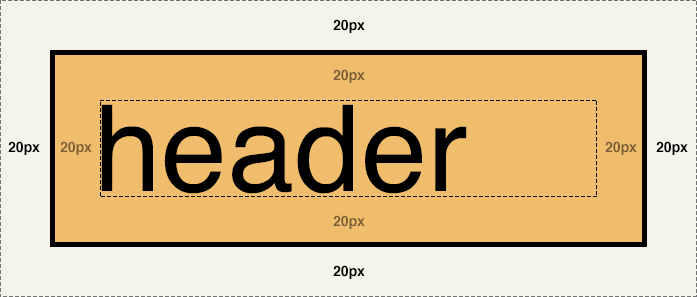
Visual demonstration of background colour, borders, margin and padding
Nice colours.
In the diagram above you can see the familiar margin rules being applied to the outside of the element. The thick black bar signifies the edge of the actual element and that a solid border of 5 pixels is being applied on all sides of the element.
The 20 pixels of padding, defined by the dashed line inside the element shows the extend of the padding and how it pushes the text away from the element's border.
Here's the CSS that would need to be written to achieve that effect.
h1 {
background-color:#f0bd6c;
border:5px solid #000;
font-size:5em;
margin:20px;
padding:20px;
width:250px;
}
All the sides.
Widths plus borders and padding require subtraction
Our element is actually 300 pixels wide, but we've had to write it as 250 pixels because we need to account for the pixels used on the border and padding. Adding up the left and right values of the border and padding gives us 50 pixels, so we'll need to subtract that from our width value, assuming we wish to keep the actual desired width of 300 pixels. This method is also required when working with fixed heights.
Backgrounds
Background colour
div {
background-color:#ffcc00;
}
The universe
The universe is commonly defined as the totality of everything that exists or is known to exist. This includes all matter and energy; planets, stars, and galaxies and the contents of intergalactic space.
You can discover more about the universe on Wikipedia.
Applying background colour. Eww, it's a bit yellow.
As you can see above, the rule background-color allows you to apply any colour to the background of the selected HTML element.
Background images
This one is a little more difficult as there are three 'for us to be able to control a background image. Here they are:
background-image:url('../images/my-image.gif');
background-position:0 0;
background-repeat:no-repeat; or repeat-x; or repeat-y;
You can abbreviate all the background rules into one, as demonstrated in the example above. This is a good way to minimise the amount of lines written in your CSS file.
Our example shows the CSS attribute abbreviated to background to allow us to add in all the different parts that can make up an element's background, including its colour, image reference, image position (x then y) and whether the image should be repeated.
However, if you have hover effects that alter the position of a background image after user interaction (as shown in the next demo), the rules will need to be written separately.
As explained in the background image hover demo, we used the attribute background-position to control where a background image sits within the context of its containing element. We used pixels to control the image which affords us a lot of precision, but there are other ways.
The universe is commonly defined as the totality of everything that exists or is known to exist. This includes all matter and energy; planets, stars, and galaxies and the contents of intergalactic space.
You can discover more about the universe on Wikipedia.
Another way of positioning.
See how we used the values top and right to position the background image? You can also call upon bottom, left and center. Using words is one of the three ways you can position background images. They are words, pixels and percentages. Whatever position or measurement you choose, it's the horizontal axis first (x) then the vertical axis (y).
Having covered pixels and words, here's an example using percentages:
The universe is commonly defined as the totality of everything that exists or is known to exist. This includes all matter and energy; planets, stars, and galaxies and the contents of intergalactic space.
You can discover more about the universe on Wikipedia.
Sitting on the fence with percentages.
Note: Essentially, top and left are the same as writing 0 and bottom and right are the same as writing 100%.
Background extras
There are a couple of other options available to you when working with backgrounds. Here's a quick summary of them:
background-attachment:fixed; or scroll;
background-clip:border-box; or content-box; or padding-box;
background-size:20px 20px;
Some extra background control.
background-attachment allows us to 'stick' the background's image to the browser view, if we use fixed. If you were to scroll the browser view, the background image would remain in full view (assuming other elements aren't blocking its visibility). Using scroll would mean it scrolls with the rest of the document. This is the default setting, so wouldn't need to be written each time you required a background image.
background-size allows us to control the size of image that is placed in an element. It's not often used, as any image used in a background should be saved for the size it is meant for. You can adjust if absolutely necessary, but it's best to leave this rule out and rely on the default size being that of the original image.
There are other uses for this rule that involve responsive design, media queries and retina display graphics. But, that's a big subject in its own right, so don't worry too much about using the background-size rule.
You can find out more about background-clip on CSS Tricks. It's a CSS3 rule, so may not work as expected on older browsers. Test it fully before use.
Congratulations
For making it this far
Hopefully most of what has been explained makes sense and will sink in over time. Have a rest and admire the universe in all its edited glory:
The universe is commonly defined as the totality of everything that exists or is known to exist. This includes all matter and energy; planets, stars, and galaxies and the contents of intergalactic space.
You can discover more about the universe on Wikipedia.
The universe is now complete.
Note: The example above probably won't look too good on a small screen device. Sorry!
Can you tell what's happening?
Hopefully the CSS and it's output shown above is starting to make sense. You should be able to see how things are working, like the colour override we put in for the Wikipedia link and how its parent paragraph has its own unique appearance (even though it still inherits things like font-size from the rules applied to all ps further up the cascade). Note too, the overrides for the margin and width of the last paragraph.
The widths that have been applied are set in percentages. Their value is to be based on the width of their parent (in the case of block-level elements they always expand to fill all the available space, by default). In the case of p's width attribute, it's value is to be 60% of its parent. This enables our text to not impede the space taken up by the background image set on the parent element. The second paragraph then overrides that width with a value of 100%, which means it takes up all the available width of its parent element, as we don't want it stopping short like its sibling.
One last thing to mention is that the font-family currently assigned to all divs should really be put in a rule for body... and that div at the top of our CSS looks suspiciously broad considering you'll be using quite a few of those tags throughout your website... but then you had an inkling some of this CSS should have been done more effectively anyway, right?
If isn't working out, take a break. Otherwise, get stuck into the next article about applying CSS and cement your new found knowledge (or confusion). The bonus is that the article is much shorter than this one!