Flash is primarily an animation tool but it also allows for programming, using its built-in ActionScript language. This article will cover its animation abilities and a teeny, tiny bit of ActionScript.
Note: The acting metaphors used in this article may become too much for sensitive readers. Alas, poor Yorick, you have been warned.
Starting
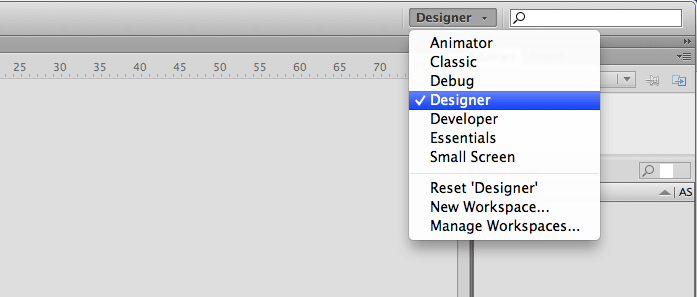
Flash has a feature called workspaces. Pick the one relevant to your workflow, or make your own, from the menu in the top right of the application.
Pick the workspace that best suits your workflow.
Designer mode does a good job when working on advertising.
If you wanted to, you could move the palettes to wherever you like and then save your own workspace. The choice is your's, young Jedi.
Five key areas of Flash
There are four key areas to Flash's workspace. They are:
Timeline
Stage
Library
Properties
Actions
These allow us to control our animation, the 'actors' and their properties, and the stage they inhabit.
The program has much depth, most of which is beyond this author's capabilities, so if you wish to know more, get on the internets and have a search. This article will stick to covering animation in the context of creating digital advertising.
Timeline
Here you can control how your objects are ordered and animated, against the clock
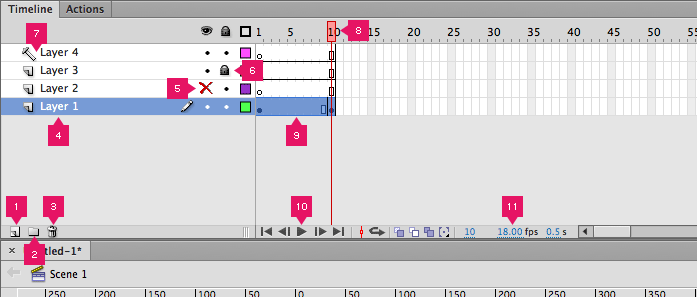
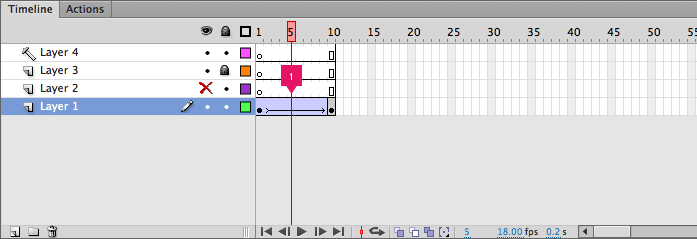
The timeline. Details follow.
Here are the details of the key functions available in the timeline, as marked on the image:
Click icon to create new layer.
Click icon to create new layer group. Can be useful to organise lots of layers.
With the appropriate layer/layer group selected, click to delete layer/layer group.
How layers are displayed in the timeline. Double-click name to rename layer.
Red cross indicates layer is hidden from view. Click to toggle layer visibility.
Padlock indicates layer cannot be edited. Click to toggle this feature on and off.
Hammer icon indicates layer is a guide. This layer will not be rendered on export. Toggle this feature by right-clicking on a layer and choosing Guide from the contextual menu.
The scrubber. Use this to 'scrub' along the timeline and see the affect of tweening and the like in real-time on the stage. Wherever the red line falls will be the frames you see on the stage.
Frames and keyframes. Layer's frames are currently shown as selected. Click and drag this selection to move frames across the timeline.
Playback controls. Use these to control the playback of your movie on the stage.
Frames per second read out. Set to 18fps or 24fps for optimal playback performance in the modern age. Double click to edit.
Frames and keyframes
All objects on the stage need a presence in the timeline – assuming you want them to stay visible for a certain period of time, beyond just one frame.
Every object starts with a keyframe. This defines the opening state of the object, based on what you want to achieve. If you wish that object to remain visible as the movie is played, extend its life by adding frames.
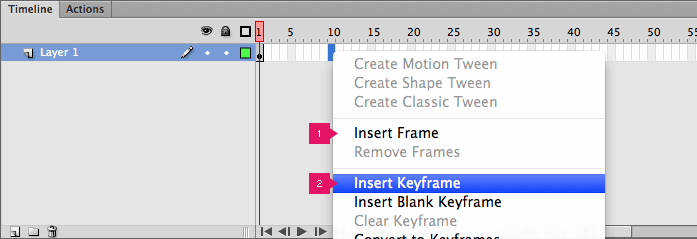
Choose a frame further along the timeline that is within that layer's row and right-click. In the contextual menu that appears you should choose Insert Frame. The layer's presence in the timeline will be extended to that point and subsequently, the object will be visible on the stage for that amount of time.
Tool tip: Use F5 to add frames. Use ⇧ shiftF5 to remove them.
If you wanted to animate that object, you would need to create another keyframe to signify a new state to the object. For instance, we could choose to make it fade out of view. This allows to assign a different set of properties to the object on the stage, without affecting previous frames or keyframes in that layer's timeline presence.
Frames and keyframes.
Choose Insert Frames to add frames up to the point you have selected in the timeline. (Indicated by the highlighted blue block, just behind the contextual menu.)
Choose Insert Keyframes to add frames up to that point in the timeline and insert a keyframe.
Right-click a point somewhere along the layer's presence in the timeline and simply choose Insert Keyframe.
Tool tip: Use F6 to add a keyframe. Use ⇧ shiftF6 to remove it.
Note: Keyframes are shown in the timeline with a black dot. Frames are just battleship grey.
Tweening
Having established a set of keyframes on a layer, we can now add what's called a tween (which is short for inbetweening (not to be confused with The Inbetweeners)).
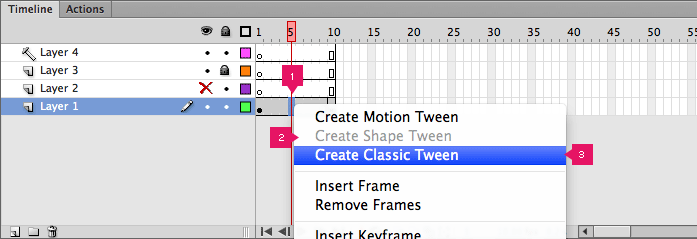
Set a tween between keyframes and watch your movie clip animate.
Highlighted timeline block indicates your selection. In this example of adding a tween, it just acts as a hook to open up the contextual menu for us to be able to choose the type of tween to be applied between the keyframes.
Choose Create Shape Tween if animating an object that isn't a Button, Graphic or Movie Clip.
Choose Create Classic Tween if you do need to animate a Button, Graphic or Movie Clip.
Note:Motion Tween is a new feature of CS5.5 and CS6, and no longer offers the same functionality as it once did in previous versions of Flash.
You should choose Classic Tween if you're looking to move and animate a Button, Graphic or Movie Clip, or alter its colour or visibility in a graceful manner.
Visual feedback after applying a tween to a layer
The blue background between the layer's keyframes and the arrow signifies a Classic Tween has been applied between the object's keyframes.
Stage
Control your actors, move them into position, direct to your heart's content. Exit stage left, optional
The timeline. Details follow.
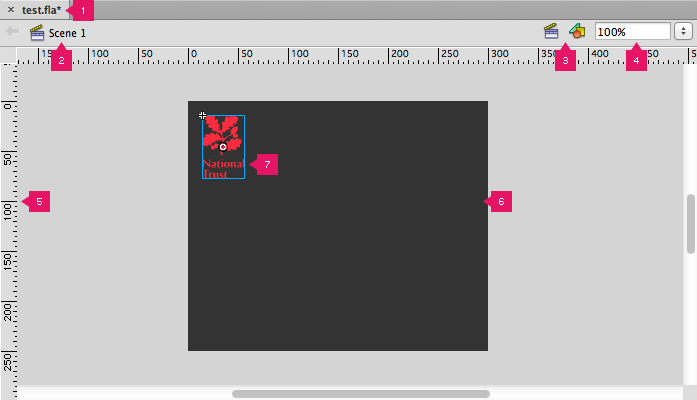
Here are the details of the key functions available on the stage, as marked on the image:
Tab showing active file. Every open file gets its own tab along this space.
Current scene, essentially the active stage.
Scene and object drop-down menus enabling fast access to currently used assets.
Zoom closer to the stage or further away.
Rulers. Click and drag from each axis to create a guide on the stage.
The stage. Its properties can be set from Document... found in the Modify menu.
Object on the stage. Currently selected as shown by the blue line around its area.
Library
Keep your players in the library, then drag them to the stage where they were destined to perform... panto?
Properties
Take years off your actor's countenances, or at least affect their various settings
Actions
Direct without a clapperboard and marshall your crew to award ceremony glory with ActionScript™