It pays to write all the files contained within your 'site' (essentially the folder you keep all the relevant files in) in lowercase.
No file or folder name should have spaces in it.
Use hyphens (or underscores) if you need to separate words to aid in the searching or reading of files.
Setting up a site structure
Create a folder and name it.
Inside that folder create two new folders:
CSS
images
Use hyphens if you need to separate words to aid in the searching or reading of files.
Create your main HTML page and save it as 'index.html', making sure to keep it in the root – essentially the main folder that contains all of the site's files.
You can create the index file in any kind of text editor – just make sure to use the .html suffix when saving. Otherwise, use Dreamweaver, which should guide you in saving it appropriately.
Within the 'css' folder you can keep as many stylesheets as you feel you can manage – using the suffix .css at the end of the filename. Just make sure they are all referenced in your HTML files to have an affect on your markup.
Images reside in the images folder. PNGs, JPGs or GIFs.
On large web projects there could be a multitude of folders and sub-folders, but for simplicity's sake this is a good level to start at.
Having established this simple set-up, it should make referencing external files and managing your site much easier.
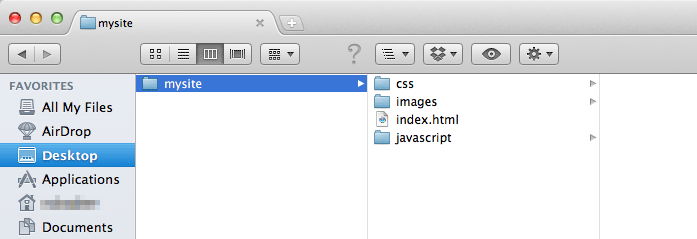
Here's an example of the folder structure, with an index.html file ready and waiting:
A sensible way to keep your HTML project organised. The author advises against leaving it on the computer's desktop, though!
Working with file references
As you progress throughout these articles (certainly the next one) you'll come to learn of referencing other files within documents. There are a couple of things to take into account so as you be sure you're targeting the right file from the right place.
Absolute and relative links
There are two types of ways to write a reference to a file (or link).
Absolute path
http://www.mydomain.com/images/localpeople.jpg
Absolutely.
Relative path
/images/localpeople.jpg
Relatively speaking.
Both methods do essentially the same thing – they take you to whatever is at the end of the path – but there's really no need to use absolute references unless you're pointing out of your own web project to something on the wider web.
The relative method should be used for referencing anything inside your own web project.
Paths in other directions
But hang on, that only lets me go down a path, I hear you say. Well, you can travel up paths too.
Maybe you have a CSS file that is spirited away in its own folder (as demonstrated above) but it needs to reference an image located in a separate folder at a different level. Here's the string that lets us do that:
../
Two periods and a forward slash.
And here's how you can 'jump' around your folder structure to reference what you require:
../images/localpeople.jpg
Two periods and a forward slash.
This example demonstrates a relative approach so the reference will always be relative to where it is written, i.e. its starting point.
That folder structure again
Jumping around the folder structure
It essentially means, start at this file (which is a CSS file inside a CSS folder), go up a level (to the everything inside 'mysite'), then find the folder called 'images' and the image inside it called 'localpeople.jpg'.