Opening times

Taking the idea further and refining it across more views

View different properties
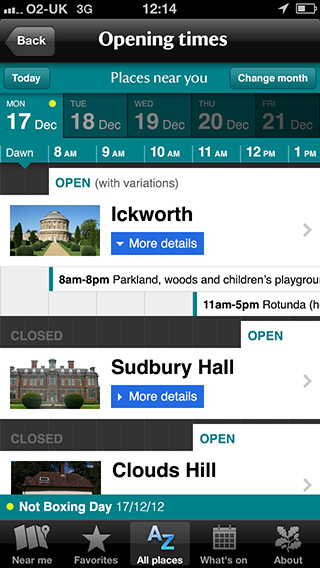
This view is a development of the original demo but still works in the same manner. We have just figured out some additional functionality and designed it to fit appropriately. Those things are:

  • Today and Change month buttons
  • Dot to indicate a public holiday
  • Dawn and Dusk (not visible) as 'hours' outside of 8am to 8pm
  • Bank Holiday indication (plus written date) for additional information

From the top down, let's go through the page. First up is the blue bar that contains the Today and Change month buttons. The Today button only appears when you are not viewing today's opening times. It acts as a means for the customer to quickly get back to today's opening time information.* The Change month button enables customers to (rather than flick/scroll across the visible days just below) jump to a month in the future. However much information is available is as far as they can go when using this feature. (You can see this feature on the third image in this article.)

* There is an issue with the placement of this button as it is quite close to the Back button. I don't foresee any difficulty with their usage, but I am not a typical customer, so the issue, I think, still remains.

The horizontal spread of five dates is the area where customers can flick/scroll to progress through the available information. The dot signifies additional day information like it being a Bank Holiday.

The main area is where a combination of places are displayed. Their opening times are signified by their white blocks sitting on the appropriate point along the timeline. Customers can flick/scroll up or down in this area to view the day or more places if those are off screen. Pressing More details shows the individual attractions of the place and pressing anywhere outside the More details button lets a customer view the place's information in full.
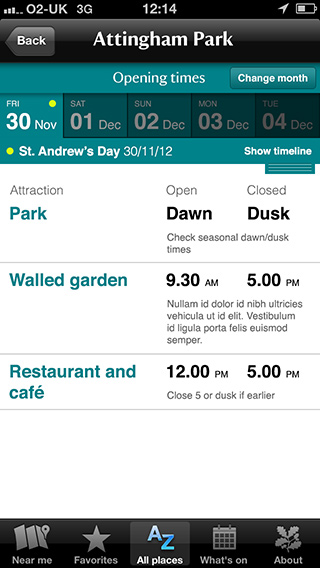
Property opening times

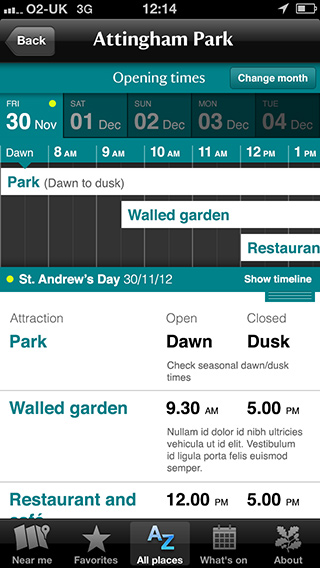
Standard view

The standard view is for customers when they are looking up opening times for a particular place. It uses a similar structure to the main opening times feature, with the only difference being the space available to write out (in a more conventional manner) the opening times of that place's attractions. There is also space for individual notes. If there are 'global' notes for that particular place's opening times, then they could easily be written above the list of attractions.

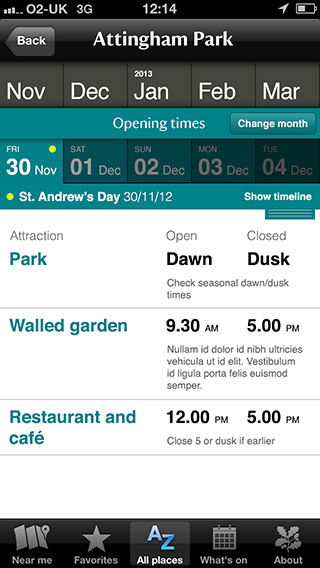
Change month

This change month view highlights where the flick/scroll area for choosing a different month appears. After pressing the Change month button the page would slide down away from the top, revealing the month picker. Customers can then flick/scroll to as far forward as we have available information. Where appropriate a year is written on the month of January, as information that spans years is generally available.

We placed it above the blue bar and the day picker to help avoid any unnecessary scrolling that pudgy fingers may induce. Once a month has been picked, the view would slide back up, hiding the month picker, and the day view would update and the written view display the correct information. We may need some form of indication on the page to say an interaction/update has occurred – maybe a simple loading graphic over the whole screen, or a brief, but elegant flash.

View timeline

If customers prefer to see the opening times of the place in a more visual manner, then they can choose to press (or grab-and-drag) the Show timeline button to make visible the cutdown version of the aforementioned global opening times page. This feature is particularly helpful when you want to see the optimal time for visiting – when all the place's attractions are open. Customers can scroll that view up or down, depending on how many attractions need to be made visible in that area.

If a place on a particular day has many attractions open, current thinking dictates that the timeline view and the simple view beneath, should both be visible, taking up about half of the screen each. As such, scrolling within each view will be necessary. On iPhone 5s this is probably acceptable, on older models with shallower screens this is most likely an issue worth worrying about. Alternatively, we could disregard the attempt to give them about half of the screen each and leave the timeline taking up approximately as much space as it does as shown in the visual. We may need to make the fourth attraction slightly visible (so you see three and a half bars, rather than just three) so the customer can appreciate more information is available if they flick/scroll within that view.

Alternative arrangement of days

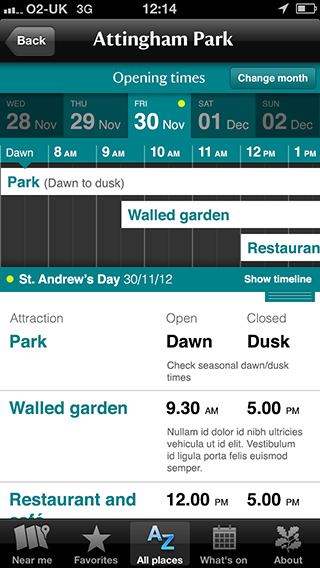
The previous visuals do not allow for seeing previous days. A clear argument can be made for this as you can't go back in time unless you're a fictional character, but for those that may wish to see what they have missed, the day control could be displayed as visualised.

Recently popularised by Fantastical for iPhone (just don't look at the calendar view!), this method allows customers to see the previous two days and the usual ability to flick/scroll forward as far as the available information will allow.

Addendum

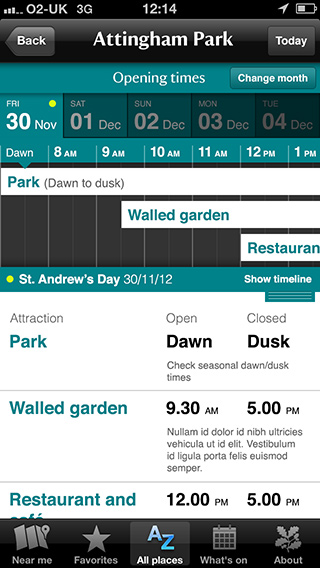
Here's an example of avoiding the Back button and Today button proximity issue. However, a new issue arises from the clash between the Today button and the Change month button...